
Welcome to Ultimatix. How to Raise a 2Office Request in Ultimatix is a type of internal service request used by employees to get office-related access or permissions. It is usually used in organizations like TCS, where Ultimatix is the main employee portal. This request helps employees to access office facilities, systems, or specific work locations based on their role. It is part of the company’s digital workflow system that manages approvals in a structured way.
Many employees, especially new joiners, often feel confused when they first try to raise a 2Office request. The process may look technical or complicated at the start. Sometimes users do not know where to click or which option to select inside Ultimatix. This confusion can delay important office access. That is why learning the correct process is very important. Once you understand it, the system becomes simple and quick to use.
Understanding how to raise a 2Office Request in Ultimatix is useful for smooth work entry and proper authorization. It ensures that employees follow the correct approval chain through their manager and the admin system. The process is fully online and can be tracked through a request ID. With the right steps, anyone can submit the request easily without errors or delays.
What is a 2Office Request in Ultimatix?
A 2Office request in Ultimatix is an internal request system used by employees to get office-related access. It is mainly used in companies like TCS, where Ultimatix is the main employee portal. This request helps employees get permission for office entry, workspace access, or system-related approvals. It is part of the company’s digital workflow that ensures proper authorization.
This request is usually raised when an employee needs access to a specific office location or facility. It goes through an approval process, often requiring manager confirmation. The system keeps everything organized and trackable through a request ID. Employees can check the status anytime inside Ultimatix. It makes the process simple, secure, and transparent for everyone in the organization.
Read Also: How to book a cab in TCS Ultimatix
Step-by-Step Guide to Raise a 2Office Request in Ultimatix
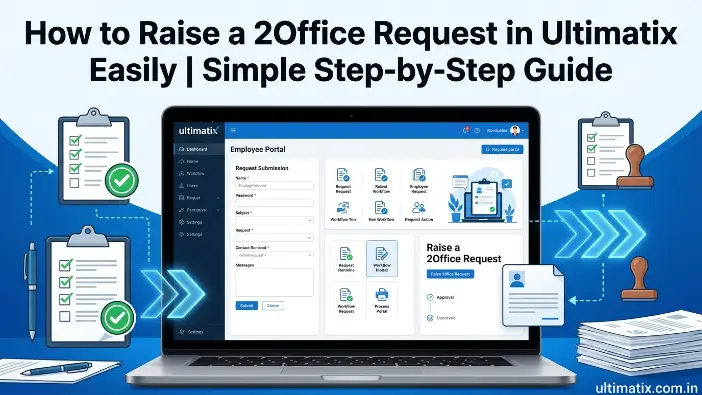
Raising a 2Office request in Ultimatix is simple if you follow the correct process. First, log in to the Ultimatix portal using your employee credentials. After logging in, go to the applications or employee services section. Find the 2Office or Helpdesk option and click on “Raise Request.” Select the correct category for office access and fill in all required details carefully. Submit the form and note the request ID for tracking.
Log in to the Ultimatix Portal
Blog opens the official Ultimatix website and enters your employee ID and password. Make sure your login details are correct. After successful login, you will enter the employee dashboard, where all services are available. This step is important because without a login, you cannot access any internal request system or raise a 2Office request.
Submit and Track Request
After filling the form, click submit to send your request for approval. You will get a unique request ID. Use this ID to track your status inside Ultimatix. The system shows updates like pending, approved, or rejected. This helps you stay informed about your 2Office request status easily.
Common Mistakes to Avoid
Many employees make small errors while raising a 2Office request in Ultimatix. These mistakes can cause delays or even rejection of the request. Understanding them in advance helps you complete the process smoothly and get faster approval from the system.
- Wrong Category Selection: Choosing the incorrect option in Ultimatix can send your request to the wrong department. Always select the exact 2Office request category.
- Incomplete Details: Missing information, like reason, location, or employee ID, can lead to rejection. Fill every field carefully and clearly.
- No Manager Approval: Some users forget to get approval before submitting. Always confirm manager approval first.
- Incorrect Login Use: Using wrong credentials or outdated links can stop access. Always use the official Ultimatix portal for a safe and valid request process.
Troubleshooting Issues
Sometimes employees face problems while raising a 2Office request in Ultimatix. These issues can stop or delay the process. Most of them are simple and can be fixed quickly if you understand the system properly. Knowing common problems helps you save time and avoid frustration during submission.
- Login Problems: If you cannot log in, check your employee ID and password. Make sure your internet is working. Reset your password if needed and try again.
- Request Not Showing: Sometimes the request does not appear after submission. In this case, refresh the page or check your request history section.
- Approval Delay: If approval takes time, contact your manager or HR. It may be pending due to verification.
- System Error: If Ultimatix is slow or not loading, try another browser or clear the cache. This often fixes access issues quickly.
Tips for Faster Approval
Getting quick approval for a 2Office request in Ultimatix depends on how correctly you submit your request. If you follow proper steps and provide complete details, your request moves faster in the system. Small improvements in your process can save a lot of waiting time.
- Clear Reason: Always write a simple and clear reason for your request. Avoid confusion so approvers understand your need quickly.
- Manager Approval First: Take approval from your manager before submitting. This reduces rejection chances and speeds up processing.
- Complete Information: Fill all required fields like employee ID, location, and purpose. Incomplete forms slow down your request approval process.
- Submit Early: Send your request during working hours. It helps approvers review it faster and avoid delays in the system workflow.
Benefits of Using Ultimatix 2Office System
The Ultimatix 2Office system is a helpful digital platform for employees to manage office access requests easily. It removes manual paperwork and makes the whole process faster and more organized. Employees can submit and track their requests online without visiting the office desk.
- Easy Access: Employees can raise a 2Office request in Ultimatix anytime from anywhere. It saves time and avoids physical paperwork.
- Fast Approval: The system follows a clear approval flow, which speeds up decision-making and reduces delays.
- Transparent Tracking: Users can track request status in real time using a request ID. This improves trust and clarity.
- Better Organization: All requests are stored digitally, making records easy to manage and access when needed for future reference.
Frequently Asked Questions
What happens after I submit a 2Office request in Ultimatix?
After submission, the request goes to your manager or admin for review. You can track each approval stage using your request ID.
Can I edit my 2Office request after submitting it?
In most cases, you cannot directly edit it. You may need to cancel the request and raise a new one with the correct details.
Who has the authority to approve a 2Office request?
Usually, your reporting manager and office admin team handle approvals based on company rules and access requirements.
Why do some 2Office requests get rejected?
Requests are often rejected due to missing details, wrong category selection, or lack of proper manager approval.
Is the Ultimatix 2Office system available on mobile devices?
Yes, Ultimatix can be accessed through supported mobile browsers or apps, allowing employees to raise requests on the go.
Conclusion
The 2Office request in Ultimatix is an important part of the employee system. It helps workers get office access in a simple and organized way. By following the correct steps, anyone can submit a request without confusion. The process is fully digital, which saves time and reduces manual effort. It also ensures proper approval from managers and admins.
Understanding how to raise a 2Office request in Ultimatix makes the whole experience easier and faster. Employees should always provide correct details and follow the official process. This helps avoid delays and rejection. The system is designed to be secure, transparent, and user-friendly. With a little practice, anyone can use it confidently and manage their office-related requests smoothly.