
Welcome to Ultimatix. Managing employee leave is a key part of every organization’s HR process because it helps keep accurate attendance records and supports smooth workflow management. For Tata Consultancy Services (TCS) employees, the Ultimatix leave application system offers a convenient digital method for handling leave requests. Employees can submit leave applications online, check their available leave balance, monitor approval status, and view their past leave records without relying on paperwork or lengthy email exchanges.
Whether you are a new employee using Ultimatix for the first time or an existing user looking to better understand the leave procedure, following the correct steps can save time and help prevent common errors. This guide covers the complete Ultimatix leave application process, including various leave types, step-by-step application procedures, approval workflow, and helpful tips for submitting leave requests successfully.
What Is the Ultimatix Leave Application System?
The Ultimatix Leave Application System is a digital leave management feature within the Ultimatix employee portal, primarily used by Tata Consultancy Services (TCS) employees. It enables employees to submit leave requests online, check their leave balance, monitor approval progress, and access earlier leave records without depending on physical forms or emails. The system makes leave management quicker and more transparent through a structured approval workflow, allowing managers to review, approve, reject, or request modifications according to company policies and project needs. All leave information is maintained digitally, helping employees, managers, and HR teams keep accurate records and manage leave effectively.
Purpose of Leave Management
The main purpose of the Ultimatix leave management module is to automate the entire leave application and approval procedure. Rather than handling leave requests manually, organizations can manage the complete process through one centralized digital platform.
This module helps organizations in several ways:
- Reduce paperwork: Employees can submit leave applications online without completing physical forms.
- Maintain accurate attendance records: All approved and rejected leave requests are digitally recorded for future reference.
- Follow company leave policies: The system helps make sure that leave requests are submitted according to organizational guidelines.
- Prevent scheduling conflicts: Managers can check team availability before approving employee leave requests.
- Improve communication: Employees, managers, and HR teams can conveniently monitor leave-related updates.
- Track leave balances in real time: Employees can review their available leave credits before submitting a request.
For employees, the main benefit is having one platform to handle all leave-related activities without needing to contact HR for routine leave questions.
Who Can Use It?
The Ultimatix leave management module is accessible to authorized TCS employees who have valid Ultimatix login credentials. However, access levels and responsibilities can differ depending on the user’s position within the organization.
| User Role | Primary Responsibilities |
| Employee | Employees can submit leave requests, check their available leave balance, monitor application status, and view previous leave records. |
| Reporting Manager | Managers evaluate employee leave requests and can approve, reject, or request changes according to project requirements. |
| HR Team | HR professionals manage leave policies, maintain employee leave records, and deal with special leave-related situations. |
| Administrator | Administrators handle system settings, user access, and the configuration of leave management features. |
Types of Leave Available in Ultimatix
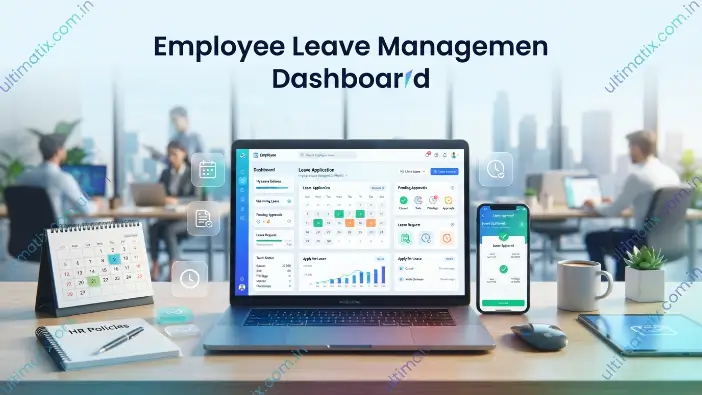
The Ultimatix leave management system offers employees various leave options according to company HR policies and individual needs. These leave categories allow employees to manage personal work, health concerns, planned vacations, and family-related occasions. Since leave policies can differ by location and business unit, employees should check the available options, review their leave balance, and choose the appropriate leave type before submitting an application to prevent delays or rejection.
| Leave Type | Purpose | Usually Paid |
| Casual Leave | Used for personal tasks, short trips, family occasions, or urgent needs | Yes |
| Sick Leave | Used for illness, medical treatment, or recovery | Yes |
| Earned Leave | Used for planned vacations or extended personal breaks | Yes |
| Maternity Leave | Provided for childbirth and recovery after delivery | Yes |
| Paternity Leave | Allows employees to spend time with a newborn baby | Yes |
| Optional/Festival Leave | Used for religious events, festivals, or special occasions | Depends on company policy |
| Leave Without Pay (LWP) | Used when no paid leave balance is available | No |
Casual Leave
Casual Leave (CL) is among the most frequently used leave categories in organizations. It is intended for employees who require a short break from work because of personal commitments or unexpected circumstances. This leave is generally used for minor personal needs that do not require an extended absence.
Employees can apply for casual leave for reasons such as:
- Attending family gatherings or social functions.
- Personal appointments or necessary errands.
- Short-distance travel plans.
- Urgent household responsibilities.
- Other immediate personal matters.
Although casual leave is intended for short-term requirements, employees should inform their reporting manager and submit the request through Ultimatix whenever possible. Communicating early allows managers to organize workloads and minimize project disruptions.
Sick Leave
Sick Leave enables employees to take time away from work when health-related problems prevent them from performing their duties. Its main purpose is to give employees sufficient time to recover while keeping accurate attendance records.
Employees may use sick leave for situations such as:
- Fever or seasonal infections.
- Medical treatment or appointments with a doctor.
- Health conditions that require rest.
- Recovery following hospitalization or medical procedures.
For a short-term illness, employees may only need to submit a leave request. However, extended medical leave may require supporting documents according to HR policies. Employees should also inform their manager about their absence to support effective work management.
Earned Leave
Earned Leave (EL), also called Privilege Leave, is a leave category that employees build up over time according to company policies. Unlike casual leave, earned leave is generally planned and is often used for longer periods away from work.
Employees commonly use earned leave for:
- Long vacations.
- Family holidays.
- Extended personal commitments.
- Important events in life.
Because earned leave accumulates gradually, employees should regularly check their leave balance in Ultimatix before planning time off. Submitting a request without enough available balance may lead to rejection or conversion to unpaid leave.
Maternity and Paternity Leave
Maternity and Paternity Leave are special leave categories intended to support employees during important family occasions. These leaves allow employees to handle personal responsibilities while maintaining a balance between professional and family life. Their purpose is to give employees the required time and support during major changes in their lives.
Maternity Leave allows female employees to take time off for childbirth and recovery, while Paternity Leave enables male employees to spend time with their newborn child. Eligibility, duration, and approval requirements depend on company policies, so employees should review HR guidelines before submitting an application through Ultimatix.
Optional and Special Leave
Optional or Special Leave is available for particular circumstances that may not fit into standard leave categories. These blog leaves are commonly associated with cultural events, personal milestones, or special situations.
Examples include:
- Religious festivals and regional holidays.
- Events related to marriage.
- Bereavement or family emergencies.
- Community service activities.
- Other occasions approved by the organization.
The availability of optional and special leave depends on company policies, employee location, and business requirements. Employees should check the available leave choices in Ultimatix before selecting this category.
How to Apply for Leave in Ultimatix (Desktop)
Applying through the Ultimatix desktop portal gives TCS employees a convenient way to manage leave requests online. The system removes the need for manual forms and simplifies the overall process by allowing employees to submit applications, review leave information, and monitor approval status from one platform. Following each step carefully helps employees provide accurate information and avoid common issues that could delay approval.
Log In to Ultimatix
The first step in applying for leave is opening the Ultimatix employee portal with your official login credentials. Employees should ensure they are accessing the authorized portal and have their login information available.
To access the account, enter:
- Employee ID or Username: Your unique employee identification information.
- Password: Your registered password for the Ultimatix account.
- Multi-Factor Authentication Code: If security verification is enabled, enter the required verification code.
After entering the correct information, select the login option. Once authentication is completed successfully, the Ultimatix dashboard will open, allowing employees to access services including leave management, timesheets, payroll information, and other employee-related features.
Open the Leave Management Module
After signing in to Ultimatix, employees need to open the leave management section to create a new leave application. This module includes services related to leave, such as submitting applications, checking balances, and reviewing earlier requests.
To open the leave section:
- Go to the Employee Self-Service (ESS) section from the dashboard.
- Locate and select the Leave Management option.
- Click Apply Leave to begin a new application.
The leave management page shows useful information such as available leave balance, previously submitted requests, and different leave categories. Reviewing these details before applying helps employees choose the appropriate leave option.
Select the Appropriate Leave Type
The next step is to choose the correct leave category based on your requirement. Ultimatix offers several leave options, and each category may have different eligibility, duration, and approval requirements.
Common leave options include:
- Casual Leave: For short personal needs or urgent matters.
- Sick Leave: For illness, medical treatment, or recovery.
- Earned Leave: For planned vacations or extended breaks.
- Optional Leave: For approved special holidays or occasions.
- Leave Without Pay (LWP): Used when paid leave balance is not available.
Selecting the correct leave type is important because choosing an incorrect category can delay approval or require changes later.
Choose the Leave Dates
After choosing the leave category, employees must enter the dates they intend to take off. Accurate information is necessary because the leave duration and balance calculation are based on the selected dates.
Employees need to provide:
- Start Date: The first date of the leave period.
- End Date: The final date of the leave period.
- Full-Day or Half-Day Selection: If this option is available.
Ultimatix automatically calculates the total leave days according to company policies, weekends, and official holidays. Employees should carefully verify the selected dates before proceeding because incorrect dates may create confusion or require the request to be cancelled and submitted again.
Enter the Reason for Leave
At this stage, employees need to state the reason for requesting leave. Giving a clear and relevant explanation helps the reporting manager understand the request and make a decision more quickly.
A good leave reason should be:
- Short and specific.
- Connected to the actual requirement.
- Simple for the manager to understand.
Example:
“I am requesting leave from 15 June to 18 June for a planned family vacation. All assigned tasks have been completed, and the required updates have been shared with the team.”
Employees should avoid vague reasons such as:
- Personal work
- Urgent leave
- Need leave
A clear explanation improves communication and can support smoother approval.
Review Your Leave Balance
Before submitting the request, employees should carefully verify their leave information. This helps prevent rejection caused by insufficient balance or incorrect details.
Review the following:
- Available leave credits.
- Selected leave category.
- Number of requested days.
- Holiday and weekend adjustments.
If an employee requests more leave days than are available, the system may display an error or process the request as Leave Without Pay (LWP) according to organizational policies.
Submit the Leave Request
After entering all the necessary information, the final step is to submit the leave application.
Before submission:
- Check all entered details carefully.
- Click the Submit button.
- Confirm the request if a confirmation message is displayed.
After submission, the application is sent to the reporting manager for review. Employees can later monitor the request status through the leave history section.
Possible status updates include:
- Submitted
- Pending Approval
- Approved
- Rejected
- Cancelled
Employees may also receive confirmation notifications through the portal or their registered email.
Example of Ultimatix Leave Application
| Field | Example |
| Leave Type | Casual Leave |
| From Date | 15 June 2026 |
| To Date | 17 June 2026 |
| Duration | 3 Days |
| Reason | Planned family vacation |
| Status | Pending Manager Approval |
Tips for Faster Leave Approval
Although approval depends on manager availability and project requirements, employees can follow certain practices to make the process smoother:
- Apply in advance: Send planned leave requests early to give managers enough time to review them.
- Check leave balance: Always verify available leave credits before submitting an application.
- Inform your manager: Discuss planned absences with your reporting manager before submitting the request.
- Complete important work: Finish urgent tasks or arrange a handover before taking leave.
- Avoid duplicate requests: Do not submit multiple applications for the same dates.
- Attach documents when required: Medical or special leave requests may require supporting documents.
- Review before submission: Carefully check the dates, leave type, and reason to prevent later corrections.
Following these steps allows employees to complete their Ultimatix leave application smoothly and may improve the chances of quicker approval.
How to Apply for Leave Using the Ultimatix Mobile App
The Ultimatix mobile application makes HR tasks more convenient by enabling employees to manage leave requests directly from their smartphones without requiring a desktop or laptop. Employees can submit leave applications, check their available leave balance, and monitor approval updates from almost anywhere. The mobile process is similar to the desktop version, requiring users to enter the necessary information and send the request for manager approval, making leave management more convenient and accessible when employees are away from the workplace.
Log In to the Ultimatix Mobile App
The first step is opening the Ultimatix mobile application and signing in with your official employee credentials. Employees should confirm that they are using the authorized application and the correct login information to access their accounts securely.
You may need to complete additional security verification steps, such as:
- Multi-Factor Authentication: Entering a verification code to provide additional account protection.
- Security Verification: Confirming your identity before accessing employee services.
- Device Authorization: Permitting access from your registered mobile device.
After logging in successfully, the employee dashboard will open and display the available services and options.
Navigate to Leave Management
After signing into the mobile application, employees need to access the leave management section to begin their request.
Follow these steps:
- Open the employee services menu.
- Select the Leave Management option.
- Choose Apply Leave to create a new application.
The application will show available leave categories, your current leave balance, and other relevant leave information. Checking these details helps you select the appropriate leave type before submitting the request.
Enter Leave Details
After choosing the leave option, employees need to enter all the necessary information associated with their leave request.
The details usually include:
- Leave Type: Choose the appropriate category, such as Casual Leave, Sick Leave, or Earned Leave.
- Start Date: Enter the first date of your leave.
- End Date: Enter the last date of your leave.
- Number of Days: Enter the total length of the leave.
- Reason for Leave: Give a brief explanation for your absence.
- Supporting Documents: Upload documents if medical or special leave requests require them.
Before proceeding, carefully review the information to ensure it reflects your actual requirement and prevent mistakes during approval.
Submit the Request
Once all leave information has been entered, the final step is submitting the application for approval.
Follow these steps:
- Review the entered information.
- Tap the Submit option.
- Confirm the request if prompted.
- Wait for approval from your reporting manager.
After successful submission, a confirmation message will appear on the screen. Employees can later monitor the request through the leave history section of the mobile application.
The status may show:
- Submitted
- Pending Approval
- Approved
- Rejected
- Cancelled
Benefits of Using Ultimatix Mobile Leave Application
Using the Ultimatix mobile application for leave requests offers several advantages for employees:
- Apply for leave from anywhere: Employees can submit applications without needing a computer.
- Check leave balance instantly: Available leave credits can be checked before submitting a request.
- Receive approval updates quickly: Employees can monitor request progress through mobile notifications or the app.
- Reduce dependency on desktop access: Regular leave activities can be completed directly from a smartphone.
- Handle urgent leave requests easily: Employees can submit important requests even while away from the office.
Overall, the Ultimatix mobile app makes the leave application process more flexible and convenient by enabling employees to manage requests anytime and from anywhere.
How to Check Leave Balance and Leave Status in Ultimatix
Before submitting a leave request in Ultimatix, employees should check their available leave balance to confirm that enough credits are available. Checking the balance beforehand helps avoid rejection caused by insufficient leave and allows employees to plan their absence more effectively. Ultimatix includes a dedicated leave management section where employees can view current leave information, monitor applications, and review previous leave records.
Checking Leave Balance
The leave balance feature in Ultimatix enables employees to see how much leave is available before requesting time off. This helps them select the right leave category and avoid requesting more days than they are eligible for.
To check your leave balance:
- Log in to your Ultimatix account with your employee credentials.
- Open the Employee Self-Service (ESS) section.
- Select the Leave Management option.
- Click Leave Balance to view your available leave information.
The system may display important information such as:
- Available Leave Credits: Shows the total leave currently available for use.
- Used Leave Days: Shows the number of leave days already taken.
- Pending Leave Requests: Displays applications that have been submitted but are awaiting approval.
- Accrued Leave Balance: Shows leave accumulated according to company policies.
- Leave Expiry Details: Provides expiry information for leaves with a validity period.
Regularly checking the leave balance helps employees plan future vacations, personal commitments, and other absences without negatively affecting their work schedule.
Checking Leave Application Status
After submitting a leave request, employees can monitor its progress through the Leave History or Request Status section in Ultimatix. This feature allows employees to see whether their request has been reviewed, approved, or still needs action.
Common leave application statuses include:
| Status | Meaning |
| Submitted | The leave request has been submitted successfully and sent for review. |
| Pending Approval | The request is waiting for approval from the manager or concerned authority. |
| Approved | The leave request has been accepted and confirmed. |
| Rejected | The request has not been approved because of policy, workload, or other reasons. |
| Cancelled | The submitted leave request has been withdrawn or cancelled. |
Regularly tracking the application status helps employees remain informed and take the necessary action if further information or approval is needed.
Viewing Previous Leave History
The Leave History section in Ultimatix enables employees to review information about their earlier leave applications. This feature helps them monitor their leave usage and understand their previous requests.
Employees can usually view information such as:
- Previous leave dates.
- Leave categories used.
- Approval or rejection status.
- Manager comments or remarks.
- Cancelled leave records.
Keeping track of previous leave records helps employees avoid duplicate applications, manage their available leave balance correctly, and plan future requests more effectively.
Understanding the Ultimatix Leave Approval Process
Submitting a leave request through Ultimatix is only the initial step in the leave management process. Once an employee submits an application, it moves through a structured approval workflow involving the reporting manager and, when necessary, the HR team. This process ensures that leave requests are reviewed based on employee needs, project requirements, team availability, and company policies while helping organizations maintain accurate attendance records and effective coordination among employees, managers, and HR teams.
Employee Submits Leave Request
The process begins when an employee completes the leave application form in Ultimatix and submits the request. Before sending the application forward, the system checks whether the provided information meets the required conditions.
Ultimatix verifies details such as:
- Leave Balance Availability: Checks whether enough leave credits are available for the requested period.
- Leave Eligibility: Confirms whether the employee is eligible for the selected leave category.
- Date Conflicts: Checks whether the requested dates overlap with existing applications or restricted periods.
- Required Information: Confirms that mandatory fields, including leave reason and dates, have been completed correctly.
When all information is valid, the request is successfully submitted and moves to the manager approval stage.
Manager Reviews the Request
After submission, the reporting manager receives a notification regarding the employee’s leave request. The manager reviews the application and determines whether it can be approved according to project and business requirements.
While reviewing the request, managers usually consider:
- Current Project Requirements: Whether the employee’s absence could affect ongoing work or deadlines.
- Team Availability: Whether enough team members are available to manage the workload.
- Work Deadlines: Whether important deliverables or milestones are approaching.
- Employee Leave History: Previous leave patterns and availability.
- Business Priorities: Overall organizational needs and operational requirements.
After reviewing the request, the manager can take different actions:
- Approve the Request: Accept the leave application.
- Reject the Request: Decline the application for valid reasons.
- Ask for Clarification: Request additional details from the employee.
- Suggest Different Dates: Recommend alternative dates if the requested period causes project difficulties.
HR Processing (If Required)
Most standard leave requests may only need manager approval. However, some special leave categories may require additional verification by the HR team.
HR involvement may be required for:
- Extended Medical Leave: Longer absences related to health issues.
- Maternity Leave: Requests associated with childbirth and recovery.
- Special Leave Categories: Specific leave types that require additional approval.
- Policy-Based Exceptions: Requests that do not fall within standard leave rules.
During this stage, HR reviews supporting documents, verifies policy requirements, and confirms that the request follows company guidelines before providing final approval.
Final Confirmation
After all required approval stages are completed, the leave status is updated in the Ultimatix system. Employees can view the final status through the leave management dashboard or leave history section.
A confirmed approval allows employees to plan their absence with confidence while keeping attendance records accurate. It also helps managers maintain appropriate workload distribution within the team.
Ultimatix Leave Approval Flow
The complete approval process can be summarized as:
Employee → Leave Request Submission → Manager Review → HR Verification (If Required) → Approval Confirmation
Common Ultimatix Leave Application Errors and Solutions
Although the Ultimatix leave application system is intended to make leave management simple and efficient, employees can sometimes encounter technical or process-related problems while submitting or managing applications. These issues may result from incorrect information, insufficient leave balance, login difficulties, or system errors. Knowing these common problems and their solutions can help employees resolve them quickly and complete their leave requests without unnecessary delays.
| Problem | Possible Cause | Solution |
| Leave application not submitted | Technical problem, incomplete information, or missing required fields | Check all mandatory fields, correct the information, and try submitting again |
| Insufficient leave balance | Employee does not have enough available leave credits | Choose another eligible leave type or request Leave Without Pay (LWP) if permitted |
| Leave is showing pending for a long time | Manager approval is still pending | Check the status and politely follow up with the reporting manager |
| Unable to access the Ultimatix portal | Login issue, authentication failure, or account problem | Reset credentials or contact the support team |
| Incorrect leave dates | Error while entering the leave duration | Cancel the request if possible and submit a corrected application |
| Mobile app not updating | Synchronization problem or connectivity issue | Refresh the app, restart it, or log in again |
Solutions:
To resolve submission issues, employees can try the following steps:
- Refresh the page and submit the request again.
- Confirm that all required fields have been completed correctly.
- Check the internet connection.
- Clear the browser cache and cookies.
- Try accessing Ultimatix using another supported browser.
- Contact internal IT support if the problem continues.
Insufficient Leave Balance
A common reason for leave rejection is requesting more days than the available leave balance. Before submitting an application, employees should always check their available credits to confirm that they qualify for the selected leave type.
Before applying, employees should:
- Check the current available leave balance.
- Review pending leave applications that could affect the balance.
- Confirm whether weekends and official holidays are included in the calculation.
- Select another leave category if applicable.
Checking the balance beforehand helps employees avoid rejection and choose the appropriate leave option.
Leave Request Pending for Too Long
A leave request with a Pending Approval status generally means that the application has been submitted successfully but is still awaiting action from the reporting manager or concerned authority.
If a request remains pending for an extended period, employees can:
- Check the current status in the leave history section.
- Contact the reporting manager for an update.
- Confirm whether additional information or documents are needed.
Employees should avoid submitting duplicate applications for the same dates unless the earlier request has been cancelled. Multiple requests can cause confusion and delay the approval process.
Ultimatix Login Problems
Login problems can stop employees from accessing leave management services. Without successful access, employees cannot submit leave requests, check their balance, or monitor application status.
Common reasons for login issues include:
- Forgotten password.
- Account being locked.
- Authentication failure.
- Network restrictions.
- Incorrect login details.
Recommended Actions:
Employees can address login issues by:
- Using the official password recovery option.
- Confirming that the correct employee credentials are entered.
- Completing all required authentication steps.
- Contacting the appropriate internal support team if access remains unavailable.
Resolving login issues promptly ensures employees can access the Ultimatix portal and manage leave requests without unnecessary delays.
Best Practices Before Applying for Leave in Ultimatix
Submitting a leave request through Ultimatix is easier when employees properly prepare their application before sending it for approval. A well-prepared request can improve the chances of timely approval while reducing unnecessary delays, corrections, or rejection. By following a few simple practices, employees can create a smoother leave application experience and maintain better communication with managers and team members.
Check Your Leave Balance First
Before requesting leave, employees should always verify their available leave balance in Ultimatix. This confirms whether enough credits are available for the requested period.
Checking the balance in advance prevents issues such as:
- Leave rejection because of insufficient balance.
- Incorrect selection of a leave category.
- Unexpected conversion into Leave Without Pay (LWP).
Employees should check their available credits and pending leave requests before submitting a new application.
Apply for Leave in Advance
Whenever possible, employees should submit planned leave applications early. Applying ahead of time gives managers sufficient opportunity to review the request and make arrangements for workload distribution.
Advance leave planning helps:
- Maintain smooth project operations.
- Arrange backup resources when necessary.
- Prevent conflicts with important deadlines.
- Improve the chances of timely approval.
For planned vacations or personal occasions, submitting the request early is always recommended.
Inform Your Reporting Manager
Although Ultimatix provides the official leave application process, informing your reporting manager before submitting a request can help make the process smoother.
A brief discussion with your manager helps them understand:
- Your reason for leave.
- Expected duration of absence.
- Current task status.
- Necessary workload adjustments.
This improves communication and allows managers to organize team activities more effectively.
Provide a Clear Reason for Leave
When submitting a leave application, employees should provide a brief but meaningful explanation. A clear reason helps managers understand why the leave is required and make decisions more quickly.
Avoid writing unclear reasons such as:
“Personal work”
Instead, provide a more specific explanation:
“Attending a family event that requires travel outside the city.”
A suitable reason provides greater transparency and reduces the possibility of additional clarification requests.
Plan Project Handover Before Leave
Before taking leave, employees should ensure that their important responsibilities are properly handled. An effective handover helps prevent delays and allows ongoing work to continue smoothly during their absence.
Before starting leave, employees should:
- Complete urgent tasks.
- Share important project updates.
- Assign responsibilities to team members when necessary.
- Inform colleagues about task status and availability.
Proper preparation allows the team to manage work efficiently while the employee is away.
Review All Details Before Submission
Before selecting the submit button in Ultimatix, employees should carefully check all entered information. Minor mistakes in a leave application can cause delays or require the request to be submitted again.
Check the following details:
- Leave start and end dates.
- Selected leave type.
- Total number of leave days.
- Leave a reason.
- Required supporting documents.
Spending a few moments reviewing the application ensures that the request is accurate and ready for approval.
Following these best practices helps employees submit stronger leave applications, avoid common errors, and improve the overall approval process in Ultimatix.
Frequently Asked Questions
What is the Ultimatix leave application system?
The Ultimatix leave application system is an online platform that allows TCS employees to submit leave requests, check their leave balance, monitor approval status, and view previous leave records.
How can I apply for leave in Ultimatix?
Sign in to Ultimatix, open Employee Self-Service (ESS), select Leave Management, choose Apply Leave, enter the required information, and submit the application for approval.
Can I apply for leave through the Ultimatix mobile app?
Yes, employees can submit leave applications through the Ultimatix mobile app by selecting a leave type, entering the required details, and sending the request from their smartphone.
How can I check my leave balance in Ultimatix?
Open Leave Management and select Leave Balance to see available leave credits, used leave, and pending requests.
Why is my leave request showing as pending?
A pending status indicates that the request has been submitted but is still waiting for approval from a manager or HR.
Conclusion
The Ultimatix leave application system gives TCS employees a convenient and efficient way to manage leave requests online. Rather than relying on manual forms, employees can submit leave digitally, check their available leave balance, monitor application status, and review earlier leave records. The system improves transparency and communication between employees, reporting managers, and HR teams by keeping leave-related information organized in one place.
A successful leave application requires accurate information and proper planning. Employees should select the correct leave type, verify their available balance, enter accurate details, and communicate with their managers when necessary. By following the appropriate leave application process, employees can avoid common errors, minimize approval delays, and manage their time away from work more effectively through the Ultimatix portal, whether they use the desktop version or mobile application.