
Welcome to Ultimatix. Ultimatix is an employee self-service portal used by TCS employees to manage various work-related activities such as leave applications, attendance, and approvals. Sometimes, employees may need to cancel a leave request due to a change in plans, urgent project requirements, or personal reasons. In such situations, knowing how to cancel leave in Ultimatix helps employees maintain accurate leave records and avoid unnecessary leave deductions.
The process of cancelling leave in Ultimatix depends on the current status of the leave request. A pending leave request can usually be withdrawn easily, while an already approved leave may require approval from the reporting manager. This guide explains the complete process to cancel leave in Ultimatix, along with common issues, solutions, and useful tips for TCS employees.
What Is Ultimatix Leave Management System?
Ultimatix Leave Management System is a digital platform used by TCS employees to manage their leave-related activities. It allows employees to apply for leave, check approval status, view leave balance, and modify or cancel leave requests when needed. The system replaces manual processes with an online workflow, making leave management easier and more transparent. Through Ultimatix, employees can track their leave requests, while managers can review and approve or reject them based on project requirements and team availability. This helps maintain accurate leave records and simplifies the overall leave management process.
Understanding Leave Requests in Ultimatix
When a TCS employee applies for leave through Ultimatix, the request goes through different stages before reaching its final status. After submission, the leave request is reviewed by the reporting manager, who checks factors such as project deadlines, team availability, and business requirements before approving or rejecting it.
Understanding the leave request workflow helps employees manage their applications correctly and take the right action when needed. If an employee’s plans change, they can request leave cancellation or modification depending on the current status of the leave application.
The leave management process generally includes:
- Applying for leave through the employee portal: Employees submit leave requests by entering the required details in Ultimatix.
- Waiting for manager approval: The submitted request is reviewed by the reporting manager.
- Tracking leave status: Employees can check whether their request is pending, approved, or rejected.
- Cancelling or modifying leave: Employees can withdraw or update leave requests when required.
Types of Leave Status in Ultimatix
Before cancelling leave in Ultimatix, employees should check the current status of their leave application. The cancellation process depends on whether the request is still pending, already approved, rejected, or cancelled. Knowing the leave status helps employees follow the correct process and avoid unnecessary delays.
| Leave Status | Meaning |
| Submitted/Pending | The leave request has been submitted but is waiting for manager approval. |
| Approved | The manager has approved the leave request, and cancellation may require additional approval. |
| Rejected | The leave request has been declined by the manager. |
| Cancelled/Withdrawn | The leave request has been successfully removed from the system. |
The process of cancelling leave in Ultimatix depends on the current status of the request. Pending leave requests are usually easier to withdraw because they have not been approved yet. However, approved leave cancellations may require manager approval because they can affect project planning, attendance records, and team availability. Therefore, employees should always verify their leave status before submitting a cancellation request.
Read also: Ultimatix Payroll: Complete Guide to TCS Salary, Payslips, Login & Employee Services
How to Cancel Leave in Ultimatix Step by Step
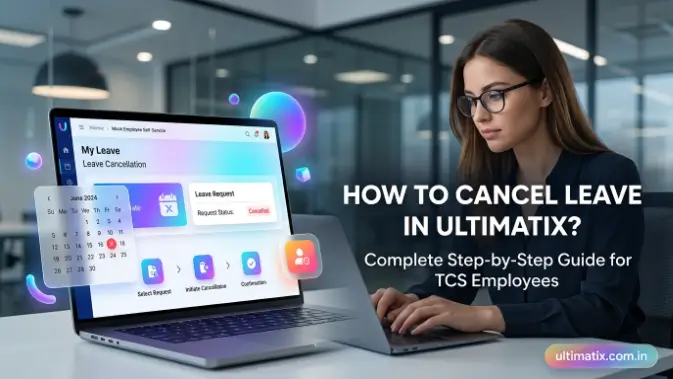
Cancelling a leave request in Ultimatix allows TCS employees to withdraw their leave applications when they no longer need time off. The process involves logging into Ultimatix, accessing the leave management section, selecting the leave request, submitting a cancellation request, and checking the final status. Before cancelling, employees should verify their leave status, as pending requests are easier to withdraw, while approved leaves may require reporting manager approval. Following the correct steps helps maintain accurate leave records and avoids confusion in the approval process.
Step 1: Log in to Your Ultimatix Account
The first step to cancel leave in Ultimatix is accessing your employee account using official TCS login credentials. Without logging into the portal, you cannot access the leave management section or view your submitted leave applications. Make sure you enter the correct details and complete any required authentication process to reach your employee dashboard.
After successful login:
- Open the Ultimatix employee portal: Access the official employee login page.
- Enter your username and password: Use your valid TCS credentials.
- Complete authentication: Finish any security verification if required.
- Access the dashboard: Open your employee home page.
Always use a secure network while accessing Ultimatix and avoid sharing your login details with others to protect your account.
Step 2: Open the Leave Management Section
After logging into Ultimatix, you need to navigate to the leave management section, where all your leave-related information is available. This section allows employees to view submitted applications, check approval status, and manage existing leave requests. Although the menu names may change due to portal updates, the general navigation process remains similar.
Generally, you need to:
- Open the employee services section: Find the area containing employee-related services.
- Select the leave or attendance option: Choose the leave management feature.
- Access the leave dashboard: View all submitted leave requests.
This section contains complete details about your applied leaves and helps you identify the request that needs to be cancelled.
Step 3: Select the Leave Request You Want to Cancel
Once you open the leave management dashboard, carefully review your submitted leave applications and select the specific request you want to cancel. Checking the correct application is important because selecting the wrong leave request may create unnecessary confusion or delay the cancellation process.
Before cancelling, verify:
- Leave start date: Confirm when the leave begins.
- Leave end date: Check the final leave date.
- Leave type: Ensure you selected the correct leave category.
- Current approval status: Check whether the request is pending or approved.
Reviewing these details helps ensure that the correct leave request is cancelled without affecting other applications.
Step 4: Submit Leave Cancellation Request
After selecting the required leave application, the next step is to submit a cancellation or withdrawal request. Ultimatix provides options based on the status of your leave request. Employees should carefully review the details before confirming the cancellation to avoid mistakes.
Once you find the required leave request:
- Open the leave details: Review the selected application information.
- Select the cancel or withdraw option: Start the cancellation process.
- Confirm the request: Submit your cancellation after verification.
- Add remarks if required: Provide a reason when requested.
After submission, the request may require approval depending on the leave status. Employees should wait for the final confirmation before considering the leave officially cancelled.
Step 5: Check Cancellation Status
After submitting the cancellation request, employees should regularly check the status to confirm whether the leave has been successfully cancelled. Tracking the status helps you know whether further action is required from your side or your reporting manager.
Possible outcomes include:
- Cancellation approved: The leave has been successfully removed.
- Cancellation pending with the manager: Approval is still awaited.
- Cancellation rejected: The request was not accepted.
You can check these updates from the same leave management section where you viewed the original leave request. Once the cancellation is completed, verify that your leave balance and records are updated correctly.
How to Cancel Approved Leave in Ultimatix
Cancelling an approved leave request in Ultimatix means withdrawing a leave application that has already been approved by the reporting manager. Since the leave is already recorded in the system, cancellation may require additional approval to update attendance records, leave balance, and team planning. Employees need to submit a cancellation request through the leave management section and confirm the updated status after approval.
Steps generally include:
- Open your approved leave request: Access the leave management section and select the approved leave you want to cancel.
- Select the cancellation or withdrawal option: Choose the available option to submit a cancellation request.
- Provide a suitable reason: Add a brief reason for cancelling the leave if required.
- Submit the request: Confirm and send the cancellation request for approval.
- Wait for manager approval: The reporting manager reviews and completes the cancellation process.
If the cancellation option is not available, it may be due to system restrictions, workflow rules, or the current stage of the leave request. In such cases, employees should contact their reporting manager or HR support team for assistance. It is important not to assume that an approved leave has been cancelled immediately after submitting the request. Always verify the final status in Ultimatix to ensure that the leave record, balance, and attendance details have been updated correctly.
How to Withdraw a Pending Leave Request in Ultimatix
Withdrawing a pending leave request in Ultimatix means removing a leave application that has been submitted but is still awaiting approval. Since it has not been finalized by the manager, it is usually easier to withdraw compared to an approved leave. Employees can cancel the request through the leave management section and should verify the updated leave status and balance to ensure the changes are reflected correctly.
To withdraw a pending leave request:
- Log in to Ultimatix: Access your account using official TCS credentials.
- Navigate to leave management: Open the section containing your leave applications.
- Select the pending leave application: Choose the leave request that is waiting for approval.
- Choose the withdrawal or cancellation option: Select the option to remove the request.
- Confirm your request: Review and submit the withdrawal confirmation.
Once the withdrawal is completed successfully, the leave request should no longer appear as an active application in Ultimatix. Employees should verify their leave balance after withdrawal to confirm that the system has updated the records properly and that the available leave balance is restored if applicable.
Common Problems While Cancelling Leave in Ultimatix and Solutions
While cancelling leave in Ultimatix, employees may sometimes face technical issues, approval delays, or system-related problems even after following the correct process. These issues can happen because of leave status changes, workflow restrictions, portal errors, or delayed updates. Understanding these common problems helps TCS employees identify the reason behind the issue and take the right action to complete the leave cancellation process successfully.
Cancel Option Is Not Available
One common issue employees face is that the cancellation option does not appear while trying to withdraw a leave request. This can happen when the leave request has already been processed, the cancellation time limit has passed, certain system restrictions apply, or the request has moved to another approval stage. In such situations, employees should first check the current leave status to understand the reason behind the missing option. If the issue continues, they can contact their reporting manager or raise a support request for further assistance.
Possible reasons:
- Leave request is already processed: The request may have already moved forward in the approval process.
- Cancellation period has expired: The system may no longer allow cancellation.
- System restrictions apply: Certain conditions may prevent cancellation.
- Approval workflow has moved to another stage: Additional approval may be required.
Solution:
- Check the current leave status.
- Contact your reporting manager.
- Raise a support request if required.
Leave Cancellation Request Is Pending
Sometimes, a submitted leave cancellation request remains pending for an extended period. This usually happens when the request requires manager approval or is still being processed through the internal workflow. Blog System delays can also prevent the status from updating immediately. Employees should regularly monitor the request status and confirm whether any additional action is needed from their side.
Possible reasons:
- Manager approval is required: The request is waiting for manager confirmation.
- The request is waiting in workflow: The system is still processing the request.
- System updates are delayed: Status changes may take time to appear.
Solution:
- Follow up with your reporting manager.
- Check Ultimatix notifications regularly.
- Confirm if any further action is required.
Leave Balance Is Not Updated After Cancellation
After a successful leave cancellation, employees may notice that their leave balance has not updated immediately. This usually happens because the system needs time to synchronize the latest changes. Employees should wait for the update, refresh their dashboard, and check the balance again. If the issue remains unresolved, contacting HR support can help fix the problem.
Solution:
- Refresh your Ultimatix dashboard.
- Wait for system synchronization.
- Verify the updated balance later.
- Contact HR support if the issue continues.
Unable to Access Ultimatix Portal
Sometimes, employees are unable to access the Ultimatix portal, which prevents them from checking or cancelling their leave requests. Login problems can occur because of incorrect credentials, network issues, portal maintenance, or authentication failures. Identifying the cause of the login issue helps employees restore access and continue managing their leave requests.
Possible causes:
- Incorrect credentials: Login details may not be entered correctly.
- Network issues: Internet problems may prevent access.
- Portal maintenance: The system may be temporarily unavailable.
- Authentication problems: Security verification may fail.
Solution:
- Verify your login details.
- Try accessing the portal later.
- Contact the appropriate IT support channel.
Important Tips Before Cancelling Leave in Ultimatix
Before cancelling a leave request in Ultimatix, employees should follow some important practices to ensure a smooth and error-free process. These steps help prevent confusion, maintain accurate leave records, and avoid delays in approval or cancellation. Whether the leave is pending or already approved, checking details, informing the manager, and keeping proper records can make the cancellation process easier and more effective.
Inform Your Reporting Manager
If your leave was already approved, informing your reporting manager before cancelling it is an important step. Approved leave can affect project planning, task distribution, and team availability, so your manager should be aware of the change. Clear communication helps the team adjust plans and prevents confusion between your actual availability and leave records.
Informing your manager also helps avoid delays if additional approval is required for cancelling the approved leave request.
Verify Leave Details
Before confirming a cancellation request, employees should carefully review their leave information to ensure they are cancelling the correct application. Checking the details helps prevent mistakes that may affect attendance records or leave balance.
Always check:
- Leave dates: Confirm the correct start and end dates.
- Leave type: Verify the selected leave category.
- Approval status: Check whether the leave is pending or approved.
Reviewing these details ensures that the correct leave request is cancelled without creating unnecessary issues.
Keep Records
Maintaining records of leave-related activities is helpful in case any issues occur after cancellation. These records provide proof of approval, cancellation, and updated leave information, making it easier to resolve any future problems.
Save important information such as:
- Approval messages: Keep manager approval details.
- Cancellation confirmations: Save cancellation proof after submission.
- Updated leave details: Keep the latest leave status information.
Proper records help employees track changes and quickly address any discrepancies.
Avoid Multiple Cancellation Requests
Employees should avoid submitting repeated cancellation requests for the same leave application. Multiple requests can create confusion in the approval workflow and may delay the completion of the process. Instead, wait for the current request to be processed and check the status in Ultimatix before taking any further action.
Following this approach keeps the workflow organized and ensures that leave records are updated correctly.
Difference Between Leave Cancellation and Leave Modification in Ultimatix
Leave cancellation and leave modification are two different options available in Ultimatix for managing existing leave requests. Many employees confuse these options because both are used when changes are required in an applied leave request. However, the purpose of each option is different. Leave cancellation is used when an employee no longer wants to take the requested leave, while leave modification is used when an employee needs to update details such as leave dates or duration. Understanding the difference between the two options helps employees choose the correct action and maintain accurate leave records.
| Feature | Leave Cancellation | Leave Modification |
| Purpose | Removes an existing leave request when leave is no longer required. | Updates details of an existing leave request. |
| Date change | Not applicable because the request is removed. | Possible as dates or duration can be changed. |
| Leave request remains | No, the request is removed after cancellation. | Yes, the request remains with updated details. |
| Approval requirement | May be required, especially for approved leaves. | Usually required for making changes. |
| Best used when | Leave is no longer needed. | Dates or duration need to be changed. |
If you only need to update your leave dates, duration, or other details, leave modification is a better option than cancellation because it keeps the existing request active while making necessary changes. However, if you do not need the leave anymore, cancellation is the correct choice to remove the request completely from Ultimatix.
Frequently Asked Questions
How can I cancel leave in Ultimatix?
To cancel leave in Ultimatix, log in to your employee portal, open the leave management section, select the leave request, and choose the cancellation or withdrawal option. The request may require manager approval depending on its status.
Can I cancel approved leave in Ultimatix?
Yes, approved leave can usually be cancelled, but the process may require approval from your reporting manager. The availability of the cancellation option depends on the company’s workflow rules.
Why is my cancel leave option missing in Ultimatix?
The cancel option may be unavailable because the leave request is already processed, restricted by workflow rules, or requires manager intervention. Check your leave status and contact support if needed.
How long does Ultimatix leave cancellation take?
The time required depends on the approval workflow. Pending requests may be cancelled quickly, while approved leave cancellations may take longer due to manager approval requirements.
Will my leave balance update after cancellation?
After successful cancellation, your leave balance should update automatically. However, system updates may take some time. If the balance does not change, contact HR or support.
Conclusion
Managing leave requests properly helps TCS employees maintain accurate leave records and avoid issues with attendance or leave balance. To cancel leave in Ultimatix successfully, employees should follow the correct process based on their leave status. Pending leave requests can usually be withdrawn easily, while approved leaves may require additional approval from the reporting manager before cancellation is completed.
Before submitting a cancellation request, employees should verify leave details, inform their manager when required, and check the updated status after cancellation. By following the proper steps and avoiding common mistakes, employees can cancel leave in Ultimatix smoothly while keeping their leave records accurate and up to date.